Translate this page

Monday, February 18, 2013

How to change the default function of Numlock.


0 comments


The Numlock key on standard computer keyboard is used to change
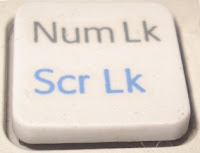
 the function mode of numeric keypad.
Numeric keypad works as a function keypad when the Numlock key is set to OFF.
And sometime you want to change its default functionality( you want it always “ON” on window startup).


Here I am going to explain how to do this. Follow these steps..
      1.       Open Start menu, open Run and type regedit in it and press Enter.
      2.       Expand HKEY_CURRENT_USER \Control Panel\Keyboard.
      3.       Double click on InitialKeyboardIndicators  in right side window.
      4.       Enter the one of the following value in ‘Value Data’ field according to your need and press OK.
       0 ---Numlock will be OFF on window startup
       1 --- Disable the Numlock Key.
       2 --- Numlock will be ON on startup.

Saturday, August 18, 2012

How to convert YouTube video files in other format like mp3, mp4, 3gp,avi etc.


0 comments

How to convert YouTube video files in other format like mp3, mp4, 3gp,avi etc.
Sometime we need youtube video file in other formats like sometime we want it in mp3 format, sometime in 3gp etc. I have very simple way to do this
Just follow below steps
1.       Cick on below link
2.       Enter your youtube file Url in the text box shown in front page of website.
3.       Click on Download now.
4.       It will ask the format in next step. Select one format in which you want the file.
5.       Click on start conversion.
6.       It will start the conversion. After completion it will show a link to download the converted file. 
7.       Download the file.
Enjoy!!!

LEARN ALSO


Wednesday, August 15, 2012

how to create symbols like copyright(©) and registered trademark(®)


0 comments


Sometimes we want to insert the some symbols like © or ®. I am going to tell you all this shortcuts of keyboards.

You can use your keyboard numeric keys with Alt button . All the shortcuts are given below


©[Copyright] =Alt +0169

®[Registered Trademark]=Alt + 0174

 ²[Square sign] = Alt + 253
 ³[cubic sign] = Alt + 0179
 ¾ = Alt + 0190
 €[Euro] = Alt + 0128
 °[degrees] = Alt + 0176
 ¥[Japanese Yen sign = Alt + 0165
 £[Pound Sterling] = Alt + 156
 ¢[cent] = Alt + 155
 ™[Trade Mark] = Alt + 0153
 ½ = Alt + 171
 ¼ = Alt + 172
 ± = Alt + 241
 « = Alt + 174
 » = Alt + 175
 Ã©[accent over e ] = Alt + 130
 Ã‰[Capitalised accen = Alt + 144
 ÷ = Alt + 246
 Âµ = Alt + 230
 ¶ = Alt + 20
 ¡ = Alt + 0161
 ¿ = Alt + 168
 Ã¤ = Alt + 132
 Ã  = Alt + 133
 Ã¡ = Alt + 160
 Ã§ = Alt + 135
 Ãª = Alt + 136
 Ã« = Alt + 137
 ÃŸ = Alt + 225
 †[dagger sign] = Alt + 0134
 Æ’ = Alt + 159
 ¬ = Alt + 170
 § = Alt + 21
 Ã„ = Alt + 142
 ¦ = Alt + 254
 ` = Alt + 352
 Ã¦ = Alt + 145
 Ã† = Alt + 146
 ^ = Alt + 350
 ¤ =   Alt + 15
 Ã¼ = Alt + 129
 ~ = Alt + 382
 Âª = Alt + 166
 · = Alt + 249
 + = Alt + 195
 Ã¿ =   Alt + 152
 Ãœ =   Alt + 154
 - =   Alt + 194
 + = Alt + 197


Enjoy!!!


learn also


Use icons of your desktop without minimizing the opened windows.


How to hide your Disk Drive.

...

Saturday, August 11, 2012

How to add some delay to Subtitle Files.


0 comments

 Sometimes we watch the movies with subtitles and its subtitle doesn’t work properly. You can download no. of subtitle files from the internet. But you don’t know which one is perfect for your movie. And it is very hard to find the correct one. The most common problem with subtitles is delay problem. Some files runs with 2 seconds delay, some runs with 4 seconds delay.
I have an easy way to solve this problem.
Follow the below steps..


1.       Download the file from here. No installation required.
2.       Launch this file and browse the path where your subtitle file(with extension .srt) resides.
3.       Select output folder where you want to save this file after conversion.
4.       Select ‘Set delay’ option. And enter your delay time in milliseconds. 1000ms=1 second.
****if subtitle is running after some seconds of actual conversation. Put milliseconds value with – sign(eg. -3000ms)
5.       Press convert button
6.       Now check your converted file.
ENJOY!!!!

Learn Also..

Tuesday, August 7, 2012

How to remove a object from an image without using any software.


0 comments


Can you remove any object from a photo within a minute. Earlier we use the Photoshop or any other software to do this and it takes very long time. But I can tell you how to do this in very small time and without having any knowledge of these type of softwares.
Follow the below steps

1.       Open this link http://www.webinpaint.com/
2.       Load image and select any image.
  
           3.       Use your left mouse button to remove the object from the image.
4.       And now click the inpaint button on the top.
5.       Wait for 3 or 4 seconds depending upon the size of object you want to remove.
6.       And see the magic…

Wednesday, August 1, 2012

How to send large file to your friend.


0 comments


We use our email accounts to send the file to our friends. But almost all the email accounts have the
limit on size for sending the files. These accounts don’t allow us to send files more than 20 Mb. But you
can send the file up to 5 GB very easily. Just follow some below steps

1. Click on the link given below or copy and paste it in your browser address bar.
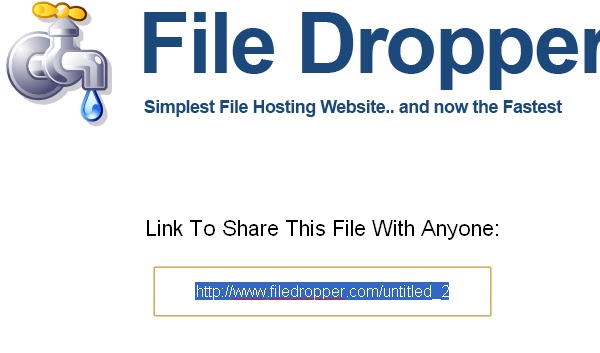
http://www.filedropper.com
2. Upload your file at this website.
3. After uploading it will give a link to you.

4. Save that link and send it to your friend and ask him to download the file here.

5. Very easy and simple.

***NOTE: This is public so be aware while sending your secret data. Anyone can download it if he/
she will get the link of your file.

ENJOY!!!

Learn Also

How to get the email ids of all facebook friends.
Covert your files in PDF format using Facebook....

Monday, July 30, 2012

How to get the email ids of all facebook friends.


0 comments


If your facebook friend doesn’t want to share his/her email id then you can’t get their email ids. But I have a trick to get the email ids of all the facebook friends. You have to follow some steps…


1.       Open your yahoomail account. If you don’t have yahoomail account then create it.
2.       Go to Contacts Tab.
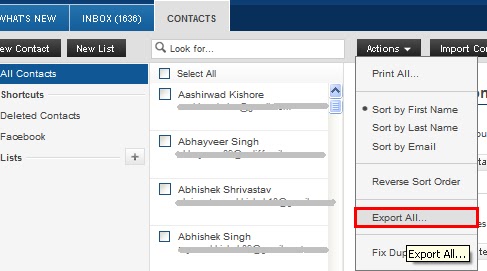
3.       Click on import contacts as shown in image below.
4.       Click on facebook symbol.
5.       Now it will ask the username and password of facebook account. Enter the username and password.
6.       In next step it will ask for the confirmation press okay.
7.       Now it will show how many email ids has been imported.
8.       Click on view imported contacts link. It will show all the contacts in your list.
9.       Now click on action button and then Export All.
10.   Press Export Now.
11.   It will ask for a captcha code fill it and enter and it will download a file.
12.   Open this file in MS Excel.
13.   Find Email column. You will get all the email ids in this column of excel sheet.
****Note : sometimes we are not able to get all the email ids in excel sheet. For this you can follow below steps
1.       Follow above 8 steps.
2.       Click on action button and press Print All.
3.       In next step press Display For Printing.
4.       It will show all the email ids with the name of that person you can copy the email id from here.
ENJOY!!!!

 Learn Also....

How to save your computer from the virus injected USB flash drives.

How to hide your Disk Drive.....

Subscribe

Subscribe to get free email updates...

Delivered by FeedBurner

 
Design by Free WordPress Themes | Bloggerized by Lasantha - Premium Blogger Themes | Grants For Single Moms
Facebook RSS Feed Twitter Delicious Digg Stumbleupon Favorites More