Hide your disk Drive
Learn how to hide your disk drive from unknow people. Follow few steps and you will be able to do this.click here..
Window 7 Wallpapers
Now you can get the latest Window 7 wallpapers here. For more detail click here.
Facebook PDF Creator
Now facebook has a new web application to convert the Microsoft PowerPoint, excel nr word files to PDF files. Many other documents also can be converted using this application. For more detail click here.
Monday, April 25, 2011
How to delete or break administator password.
1 comments
Thursday, April 21, 2011
How to use your keyboard as a mouse.
0 comments
Sometime you need to use keyboard as a mouse. When your mouse stops working then you can enable your keyboard as a mouse. You can control mouse pointer with the keys of keyboard. This feature works in all windows such as window xp, 98, vista and window 7. Just follow below simple step. After that you can do your mouse work with the help of keys of keyboard.Tuesday, April 19, 2011
Microsoft Excel shortcuts
0 comments
F5 | Go to a specific excel cell |
F11 | Create the chart |
F2 | Edit selected cell |
F7 | Spell check for selected text |
Ctrl+; | Enter current date. |
Ctrl+Shift; | Enter current time. |
Shift +F3 | Open the formula window. |
Shift +F5 | BringUp search box. |
Alt +Shift+F1 | New worksheet insertion. |
Ctrl +Page down | Move between Excel worksheets. |
Ctrl +page up | Move between Excel worksheets. |
Alt+= | Create formula for sum all above cells |
Ctrl+tab | Move beteen two Open Excel files. |
Ctrl +’ | Insert the value of above cell into currently selected cell |
Ctrl +shift +$ | Format number in Currency format |
Ctrl +shift +! | Format number in comma format |
Ctrl +shift +# | Format numbers in date format |
Ctrl +shift +@ | Format number in time format |
Ctrl +shift +^ | Format number in scientific formats |
Ctrl +shift +% | Format in percentage format |
Shift +space | Entire row selection |
Ctrl+space | Entire column selection |
Ctrl +F6 | Switch between open windows/workbooks. |
Ctrl +f10 | Maximize selected window |
Ctrl +f9 | Minimize current selected window |
Ctrl +5 | Strike through highlighted portion |
Ctrl +P | Open print dialog box |
Ctrl +z | Undo last action |
Ctrl+B | Bold selected text |
Ctrl+A | Select all contents |
Ctrl +I | Italic selected text. |
Ctrl+k | Insert link. |
Ctrl +U | Underline selected portion. |
Learn how to hide your Disk Drive.
Sunday, April 17, 2011
How to hide your Disk Drive.
0 comments
Sometimes we don’t want to show our Disk Drive to another person. We need to hide this. You can hide your Disk Drive in few simple steps. You can implement this trick at any version of windows such as windows 98, xp, vista & window 7. You can unhide your drive whenever you want.
Learn how to unhide your hidden Folder Option.
Learn How to Lock your pc when you go away from it.
.
...
Saturday, April 16, 2011
How to enable Hidden Folder Option.
0 comments
Friday, April 15, 2011
how to use shortcut key to create new folder.
0 comments
If you want to create a new folder in your computer then you always click on right button of mouse then select new folder. It can be a time wasting for those who love to do their work with the keyboard shortcut. I have a shortcut key method to create new folders and I am going to share it with you all.
You have to follow the below steps:-
- Open your path or place where you want to create new folder.
- Now press and hold the alt key and press F.
- Now press W+F together to create new folder.
- Now name it and your folder has been created.
You can do this easily.
A main disadvantage of this shortcut is that you can’t apply it at the desktop. You have to follow the simple method for creating the folder on desktop.
Wednesday, April 13, 2011
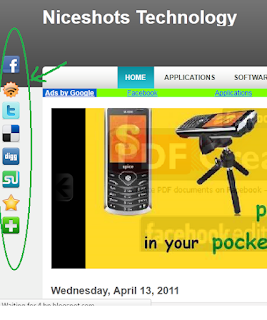
How to add floating buttons/icons on your blogger.
1 comments
Floating buttons give a good and professional look to your website. You might have seen these cool floating buttons in many websites or blogs. One more benefit of these buttons is that it always stays in front of visitor’s eyes while they are scrolling from top to bottom of page or vice versa. It is very easy to add this buttons on your blog. You have to follow some below steps. 1. Make your own button image or download it from here. (Note: buttons should be in png format).
2. Upload these buttons/icons at one of following site
Tinypic.com
Imageshack.com
Photobucket.com
Or any another site which you know to upload the images.
I always use the tinypic.com for uploading images.
3. Get the url for uploaded images.
(Note: you will get the url of image on the uploaded site after uploading the images.)
4. Open your blogger account. Go into design tab. Click on Edit HTML
Now find the
</body>in your html code and paste the below code before this.
//For Facebook
<a href="http://www.facebook.com/yourfacebooklink" style="bottom: 310px; display: scroll; left: 4px; position: fixed;" target="_blank" title="Follow Me on Facebook">
//For Twitter
<a href="http://twitter.com/enter_your_twitter_username" style="display:scroll; position:fixed; bottom:350px; left:4px;" target="_blank" title="Follow Me on Twitter">
//For dig
<a href="http://digg.com " style="display:scroll; position:fixed; bottom:390px; left:4px;" target="_blank" title="Digg This">You can add another buttons in similar way like Rss field, stumble upon etc.
5. Change the link in double quoted of href into your link and change the src of image with your uploaded link of images.
6. You can change the position of the buttons from left to right. Just change the left:4px to right:4px
7. You can adjust the position from bottom. Change the 310px,350px etc with your required height. you can see the example at this blog.
Friends if you like this post. Then share it with your friends and share your comments here.


